Glass TOC Workflow: Configuring the experiment
Assay
Glass organizes data collection by Assay (the experiment). Each Assay is made of multiple tasks, one for each family of measurements required to complete the experiment. A task within an Assay has a schedule in order to represent measurements that reoccur weekly, daily or multiple times a day. This allows you to configure an experiment once and recall the saved task anytime new instrument readings are available.
You will tipically add a “TOC” task to an existing Assay.
Before starting make sure your Glass instance is pointed to the correct facility:
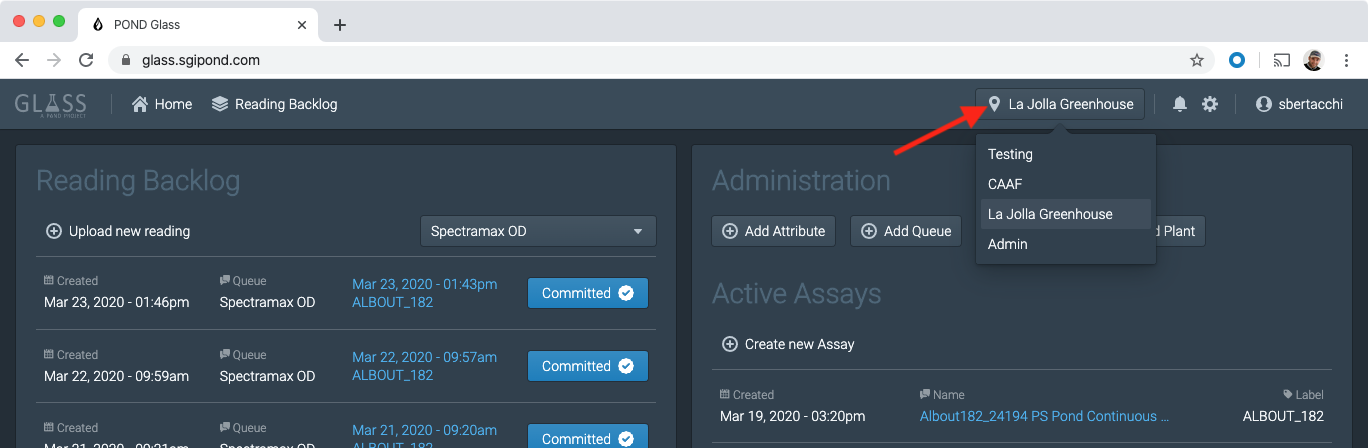
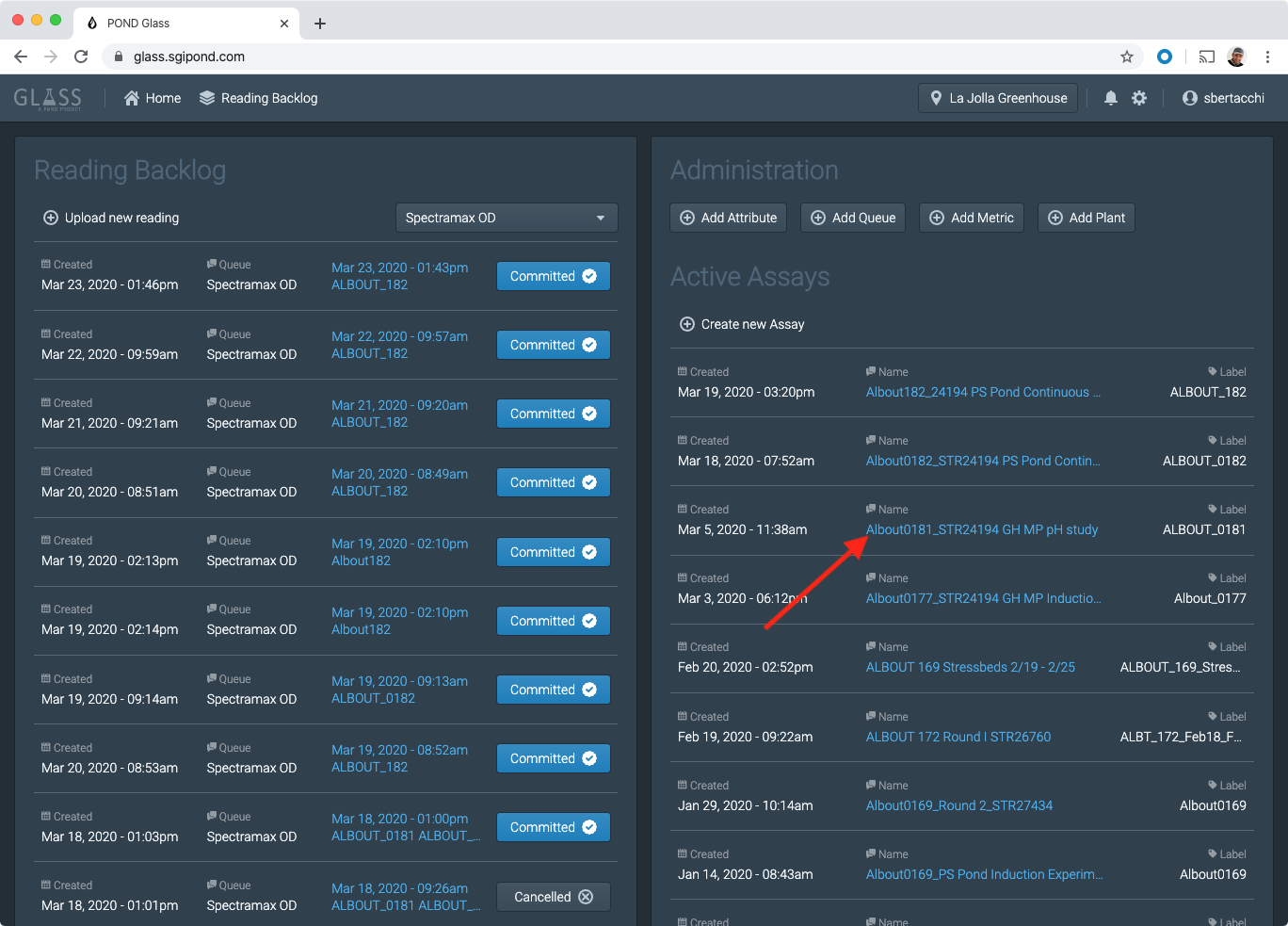
The list of the active Assays is in the right panel of Glass home page: https://glass.sgipond.com
Locate the experiment you want to modify
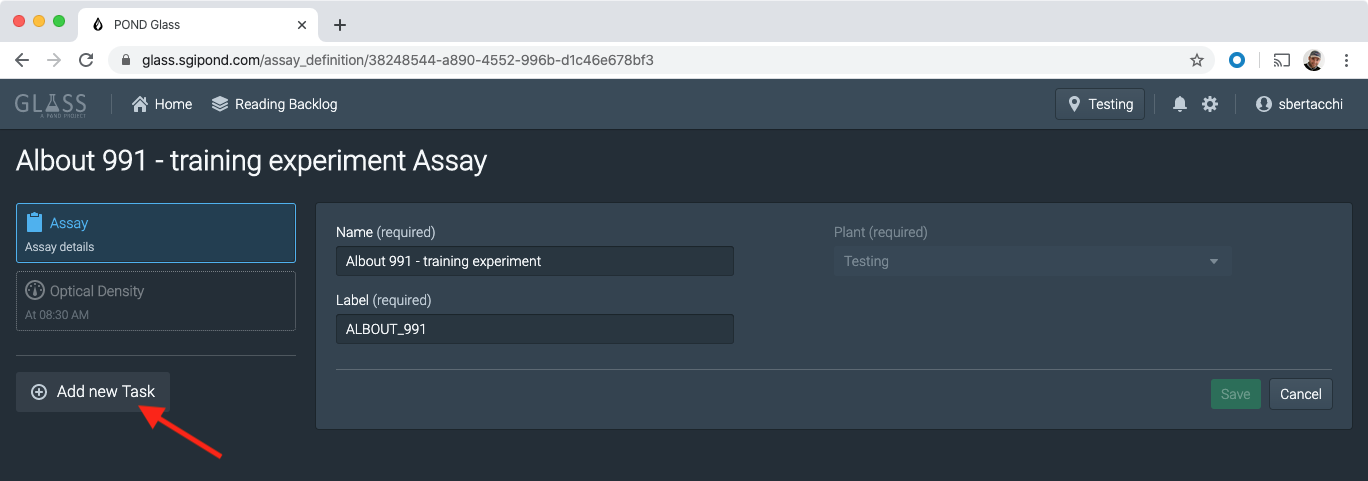
Task
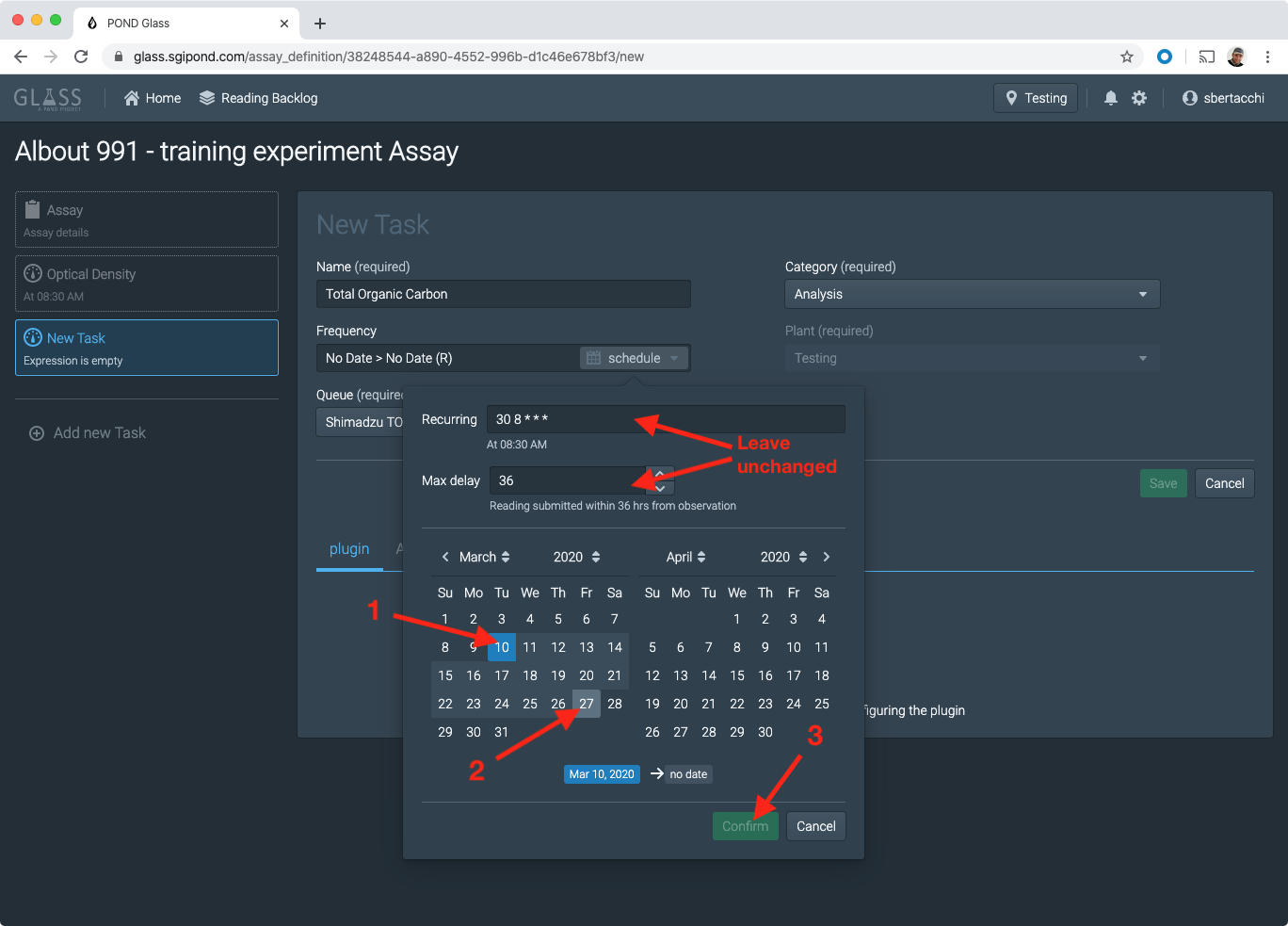
To add a new task for TOC, click on add new task
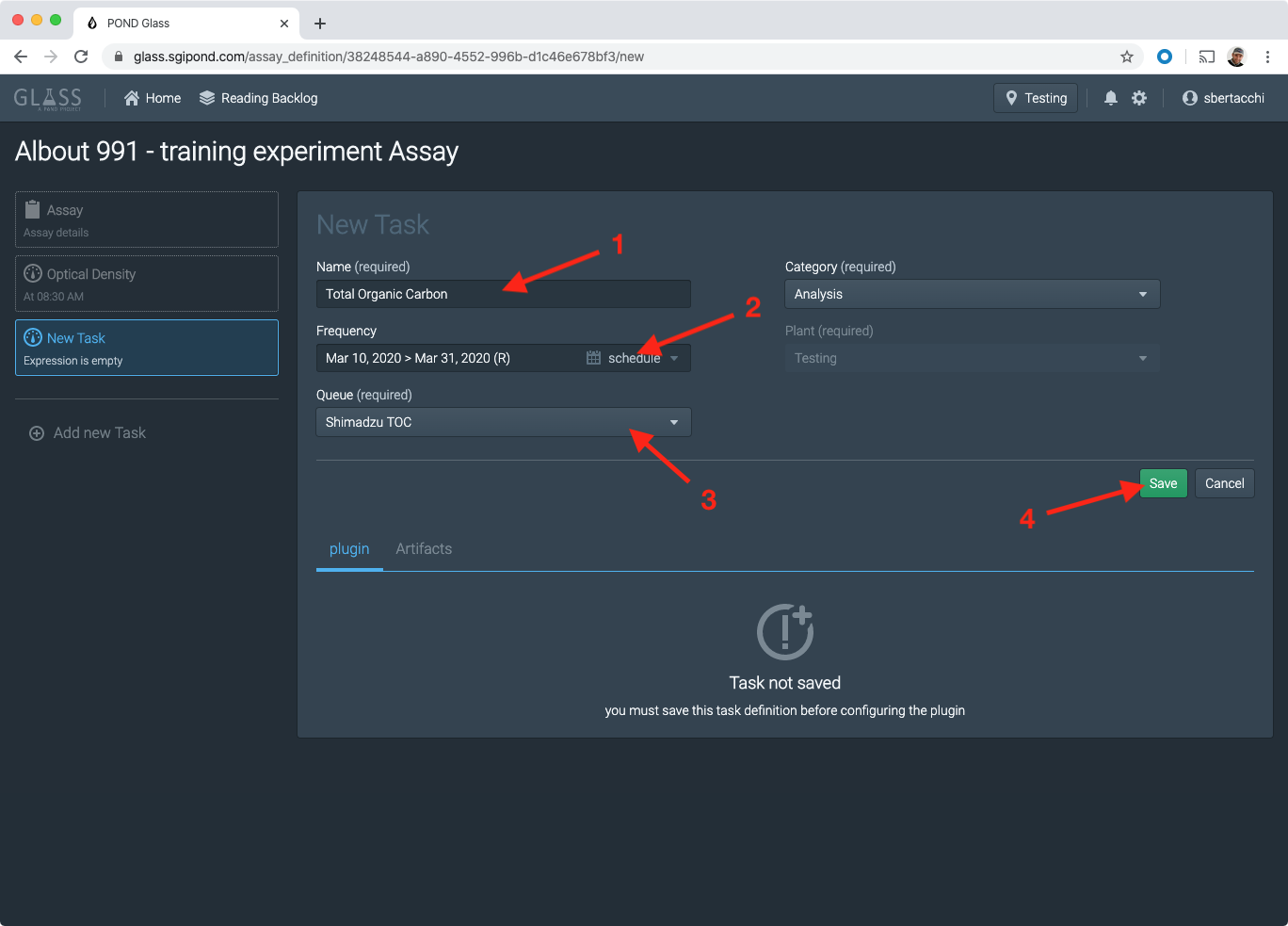
 then fill in the form as follows:
- Name:
Total Organic Carbon(or specific name if any) - Frequency: Click the schedule button and select the date range of the experiment, click “Confirm”.
- Queue: Select
Shimatzu TOC - Click “Save”
Instrument Layout
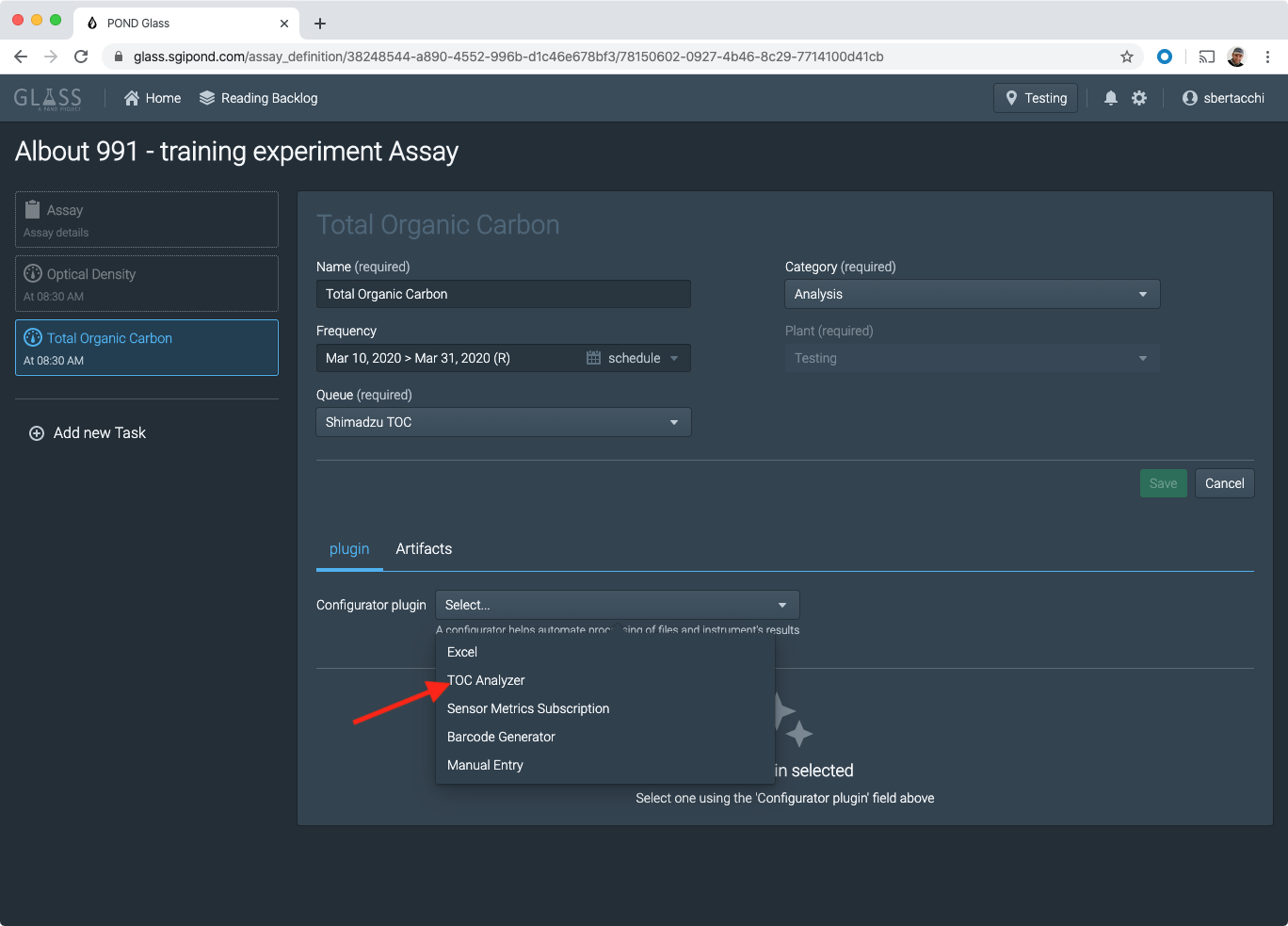
Once the task form has been saved you’ll be able to select a Plugin designed specifically to configure a Shimadtzu Carousel.
Select TOC Analyzer from the “Configurator plugin” list.
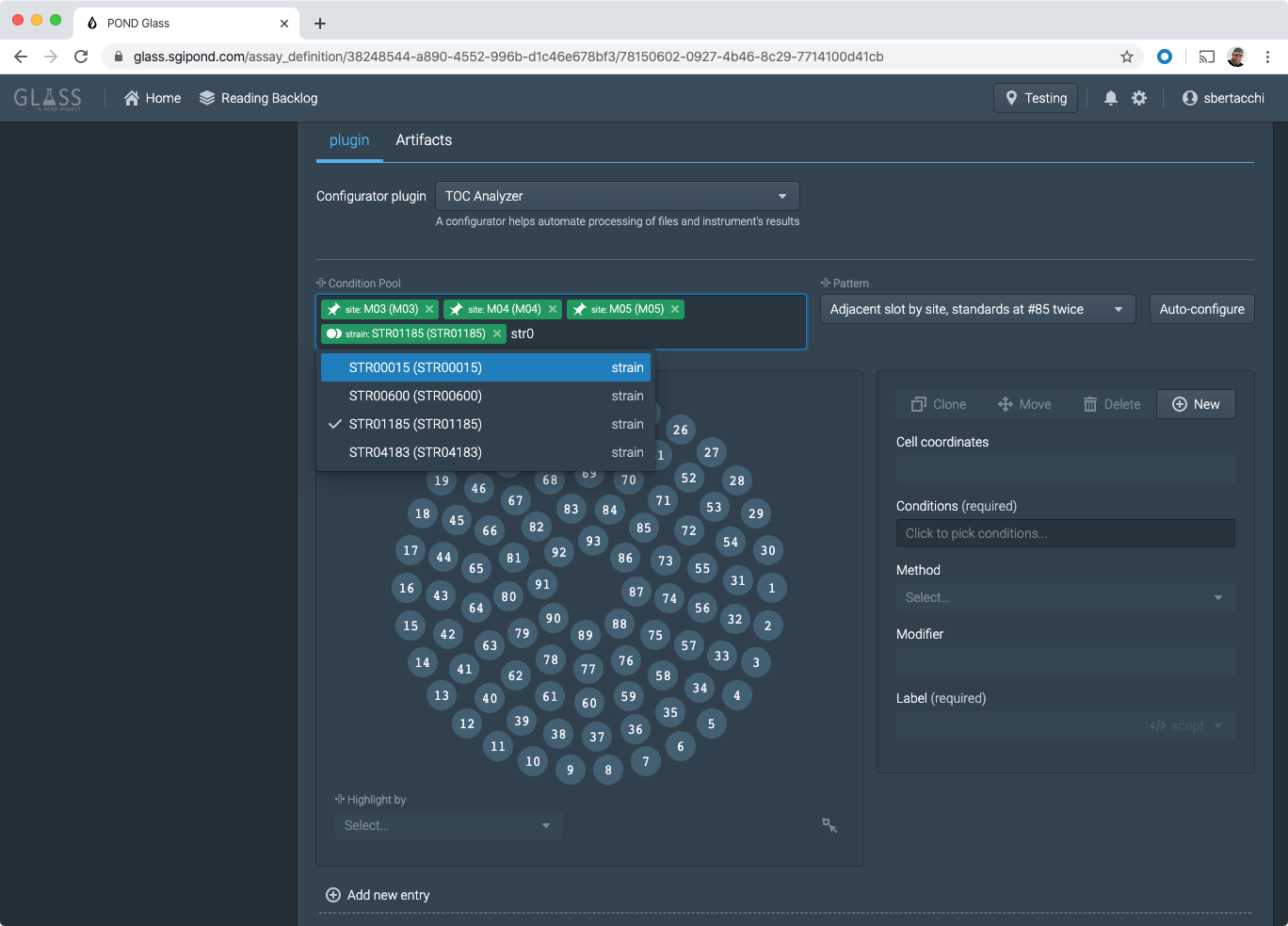
The diagram of an empty carousel will appear. The easier way to configure the instrument is by using the auto-configure button. Auto-configure position one vial on the carousel for every combination of the attributes entered in the “Condition Pool” box.
Scroll through the list of type in the selection box to filter the options, then select the entries that match the experiment (typically one or more sites, one strain and one dilution factor).
Click the “Auto-configure” button to generate the vials.
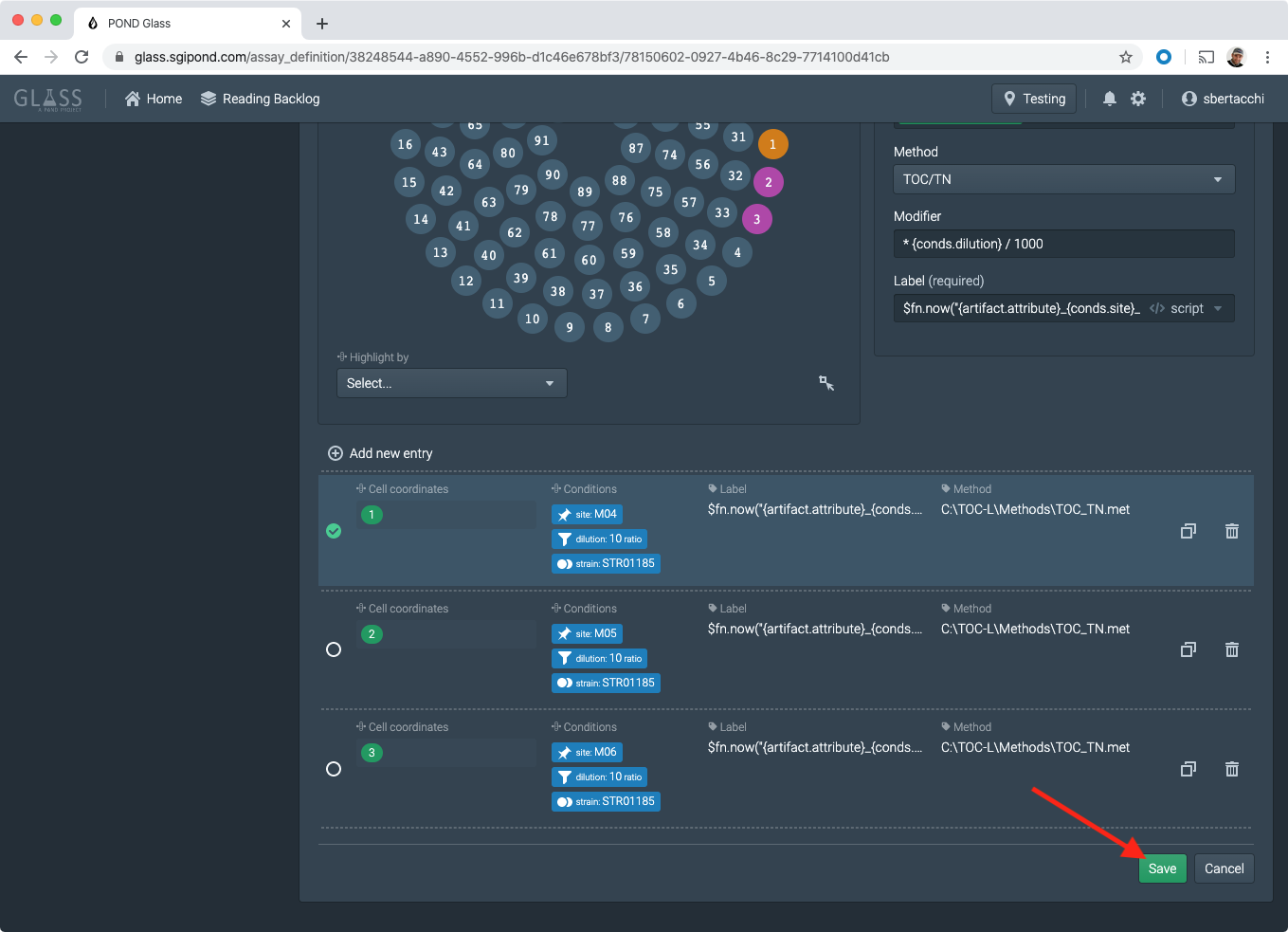
Example 1:
Condition Pool:
[site:M04] + [site:M05] + [site:M06] + [strain:STR01185] + [dilution:10]

Generated Vials:
- Vial 1: [site:M04], [strain:STR01185], [dilution:10]
- Vial 2: [site:M05], [strain:STR01185], [dilution:10]
- Vial 3: [site:M06], [strain:STR01185], [dilution:10]
Example 2:
Condition Pool:
[site:M04] + [site:M05] + [site:M06] + [strain:STR01185] + [dilution:10] + [dilution:100]

Generated Vials:
- Vial 1: [site:M04], [strain:STR01185], [dilution:10]
- Vial 2: [site:M04], [strain:STR01185], [dilution:100]
- Vial 3: [site:M05], [strain:STR01185], [dilution:10]
- Vial 4: [site:M05], [strain:STR01185], [dilution:100]
- Vial 5: [site:M06], [strain:STR01185], [dilution:10]
- Vial 6: [site:M06], [strain:STR01185], [dilution:100]
You can repeat the auto-generation sequence multiple times to correct mistakes, the carousel will be emptied and recreated according to the new configuration.
Once the layout matches the desired arrangement, click “Save” to store the TOC Task and make it available to the operators who will load the instrument readings.
TIME SAVING TIP: calibration and standard vials can be loaded as a separate Task in a dedicated “Standards” Assay. At the moment of loading a new instrument reading you will be able to select the “Standards” task along with the actual experiment’s task and blend the two.
Back to Glass TOC Workflow